
QUESTION
How to export audio from video feedback using FFMPEG
ANSWER
In VIVOTEK cameras the data is send as follows:
 At the moment there is no function that allows the camera to send only audio data, so if your application requires audio only you will need to use a third party tool. We suggest to use FFMPEG because it is very easy to use. FFMPEG is a tool that can allow you to get video streams from the camera and manage them (https://ffmpeg.org/). In this guide we will teach you how to export audio from your camera RTSP stream using this tool. Please follow the next steps:
Step 1: Download FFMPEG tool from the following link:
ftp://fae:fae@ftp.vivotek.com/Tool/FFMPEG.zip
Step 2. Extract the files contained in the .zip folder in your preferred location (e.g C:/)
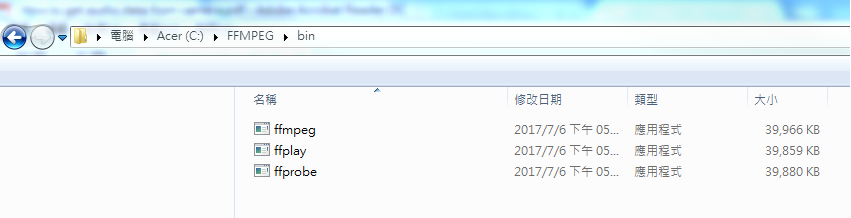 Step 3. Open the windows console (cmd.exe) and go to the folder in where you exported the files using the following command:

Step 4. Use the following command to retrieve the video stream from the camera and extract the audio from it:
 Where,
-i rtsp://<IP CAM>/live.sdp is the camera video stream (audio + video)
-acodec libmp3lame is the audio library
-ac is the audio channel (stream dependent)
-ab is the audio bitrate (can be modified)
C:\<destination>\file.mp3 is the record path
file.mp3 is the file name
Please note that in this example we extracted audio from channel 2 but you can change it to your required channel (all camera channels uses the same audio so it should not affect). The audio bit rate was set to 160 bits (usually enough for audio extraction) but you can change it depending on your requirement. Additionally, if the camera has a user/password configured you will need to add it to the RTSP line as follows:

Step 5. Stop the recording by pressing “CTRL C”, then go to the recording path and check your audio recording. Please note that you need to enable audio in the camera in order to record it.
IMPORTANT NOTE: This process can only be used if the camera have audio feedback (built in microphone or external microphone), if the camera have no audio you wont be able to export any audio data.
Step 1: Download FFMPEG tool from the following link:
ftp://fae:fae@ftp.vivotek.com/Tool/FFMPEG.zip
Step 2. Extract the files contained in the .zip folder in your preferred location (e.g C:/)
Step 4. Use the following command to retrieve the video stream from the camera and extract the audio from it:
-i rtsp://<IP CAM>/live.sdp is the camera video stream (audio + video)
-acodec libmp3lame is the audio library
-ac is the audio channel (stream dependent)
-ab is the audio bitrate (can be modified)
C:\<destination>\file.mp3 is the record path
file.mp3 is the file name
Please note that in this example we extracted audio from channel 2 but you can change it to your required channel (all camera channels uses the same audio so it should not affect). The audio bit rate was set to 160 bits (usually enough for audio extraction) but you can change it depending on your requirement. Additionally, if the camera has a user/password configured you will need to add it to the RTSP line as follows:
Step 5. Stop the recording by pressing “CTRL C”, then go to the recording path and check your audio recording. Please note that you need to enable audio in the camera in order to record it.
IMPORTANT NOTE: This process can only be used if the camera have audio feedback (built in microphone or external microphone), if the camera have no audio you wont be able to export any audio data.
Comments
0 comments
Article is closed for comments.